
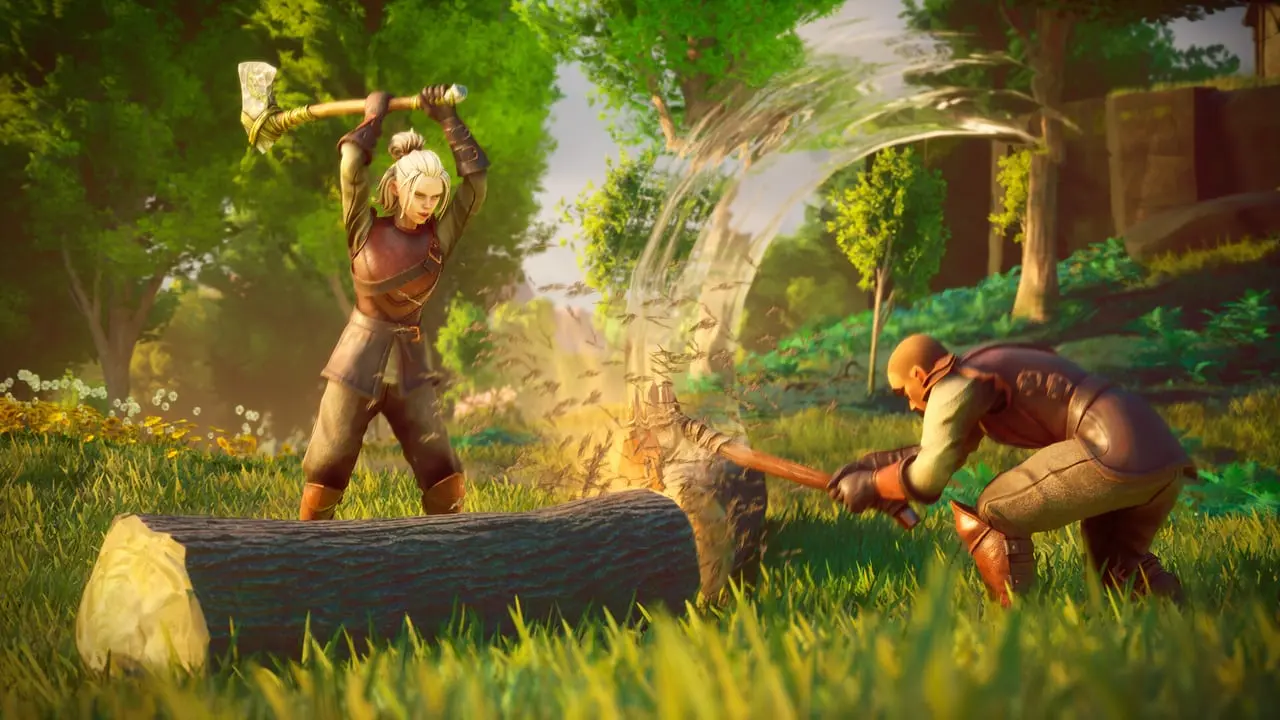

Your RuneScape: Dragonwilds server is installed and waiting for you - here's how to make it yours, get it online, share it with your party and keep your world safe.
What you get after ordering
Your server is installed and stopped, ready for its first start. It won't start until it knows who owns it, so there's one thing to do before you press Start: add your Player ID.
Add your Player ID before the first start
Dragonwilds makes the Player ID you enter the owner of the server. Until you add yours, the server refuses to start.
- In the game, open Settings and copy My Player ID from the bottom left of the screen. The copy button beside it takes all 32 letters and numbers.
- Log in to the dashboard, open your server and go to the Startup tab.
- Paste it into Owner ID and save. The field only accepts the full 32 letters and numbers, so copy the whole ID.
The Add your Player ID before the first start banner at the top of your server's page is the same reminder, and its Add Player ID button takes you straight to the field. It goes away once your Player ID is saved.
If you press Start before adding it, the server stops straight away and the Console prints [PYW] This server needs your Player ID before its first start. with these same steps.
Start the server
Press Start, then open the Console. Dragonwilds' own log is long and technical, so the console hides it and shows a short list of plain-English lines instead:
A real error still shows, in red. If the server stops on its own, copy those red lines for your support ticket.
World name and join password
Both live in the Startup tab, and the server writes them into its settings file on every start, so a change takes effect when you restart.
The join password is also in the panel's left rail as Join password, under your server's name. It's hidden until you press the eye, the copy button takes the whole thing, and the pencil jumps to the field in Startup so you can change it.
Changing World Name later starts a brand-new world. Your old world isn't deleted: it stays on the server, and setting the name back and restarting loads it again.
How friends join
Send your party two things: the World Name exactly as it is in Startup, and the join password from the left rail.
In the game, players open Play, then Online, to reach the Worlds screen. There are three ways in from there:
- Invite Code (bottom right of the screen): type the Invite code from the panel's left rail, under your server's address. It goes straight to your world. The server makes a new code every time it starts, so send the current one.
- Public tab: search the world name. The search is case sensitive, so type it exactly, capitals and spaces included. Your world shows your Server Name under Created By, with a dash in front, such as
-PlayYourWay. - Direct tab: type your server's IP address and port, such as
203.0.113.10:25589, into IP Address. Include the port: without it the game tries 7777, which isn't your server. The game only takes numbers here, not a name.
Either way the game asks for the join password next. A wrong one shows Password is incorrect.
Your server starts with a world name made just for it, such as PYW-K3X9QA, so no one else's world turns up in your party's search. If you change it, pick a name nobody else is likely to use. Still stuck? Fix: can't connect to your server covers the checks that apply to every game.
Manage players in the game
As the owner, press Esc in your world and open Player List. It lists everyone on, with an Invite button at the top, and selecting a player lets you:
- Kick them: they're removed and can't rejoin for 60 seconds.
- Ban them: they're removed and can't join this server again.
- Avoid them: they're removed and can't join any of your servers.
- Report them to Jagex for inappropriate behavior.
Player cap
Each plan has a hard cap on how many players can be in your world at once:
Six is the most the game allows on any server. The server works the cap out from your plan every time it starts, so after you upgrade or downgrade your plan, restart the server and the console's Player cap for this plan line shows the new number. Your world comes with you. Our RuneScape: Dragonwilds plans list each tier.
See who's online
The Players tab shows how many players are on right now and lists them by name, and it updates as players join and leave. The count shows within a minute of the server starting. After we update the dashboard, players who were already on are counted but listed without a name until they next join.
The Console's History tab keeps the joins and leaves, so you can see who came and went. A player whose password was refused never joins, so they won't appear in either place.
Game updates
Your server checks Steam for a new Dragonwilds build every time it starts and installs it on the way up. If players can't join after the game updates, a Restart from the dashboard is all it takes. A scheduled restart keeps it current without you having to remember.
Saves and backups
The game saves your world every few minutes by itself. Each world is one file named after its World Name, such as PYW-K3X9QA.sav, in the File Manager under RSDragonwilds/Saved/SaveGames/. Every world you've made is there, including ones you've switched away from with World Name. RuneScape: Dragonwilds worlds and saves covers switching between them, and Back up and restore a RuneScape: Dragonwilds world covers getting one back.
For a restore point you control, press Create backup on the Backups tab before any big change, such as a new world name or a game update. The top of the tab shows how many backups your plan allows. How to create and restore backups covers restoring, protecting and downloading them.
Common first-boot problems
- The server stops straight after Start - check the Console. If it asks for your Player ID, add it to Owner ID in Startup as above.
- Startup won't save Owner ID - it must be your full Player ID, 32 letters and numbers with nothing else.
- Startup won't save World Name or Server Name - only letters, numbers, spaces, hyphens, underscores and apostrophes are allowed, up to 16 characters for each.
- Your world is brand new after a settings change - World Name changed. Set it back and restart to load your old world.
- A friend can't get in while others can - your world may be at your plan's player cap. Check the Players tab, or upgrade for more room.
- A new password doesn't work - the server reads it on start, so restart after changing it.
The closer a player is to your server's location, the lower their ping.
If your problem isn't on this list, open the Console and copy the exact lines. Paste them into your support ticket along with what you changed just before it started.
Related guides
RuneScape: Dragonwilds server settings: what each does
What Owner ID, World Name, Server Name, Join Password and Admin Password do on a RuneScape: Dragonwilds server, and how a change is applied.
5 min read
Dragonwilds server won't start? Fix it
RuneScape: Dragonwilds server stops straight after Start? Add your Player ID to Owner ID, then check the console lines a healthy start prints.
6 min read
Back up and restore a RuneScape: Dragonwilds world
Back up your RuneScape: Dragonwilds world before a new World Name, a reinstall or a game update, and restore a deleted or damaged save file.
4 min read