
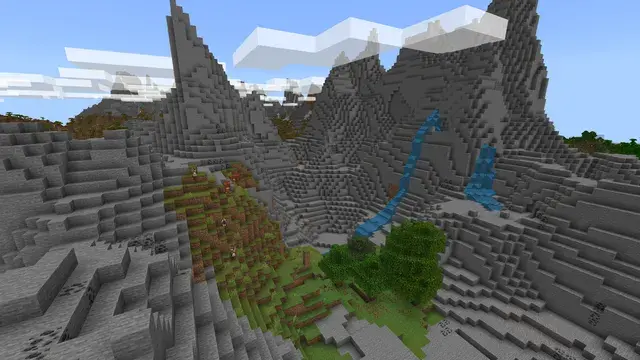
Project Architect 2 is a Forge modpack for Minecraft 1.20.1 about automation and EMC generation with the ProjectE mod. The project page says quests guide players through machines from Industrial Foregoing, Draconic Evolution, Thermal, Mekanism and RFTools Dimensions. This guide installs it from the Modpacks tab, applies the settings the pack's own start script would have set, and covers how players join.
Checked against Project Architect 2 6.0 (Minecraft 1.20.1, Forge), October 2026.
What it needs
- Forge on Minecraft 1.20.1. The newest file on CurseForge is Project Architect 2 - 6.0. It has a separate server pack,
Project Architect 2 6.0 Server Files.zip, about 440 MB, which the Modpacks tab installs for you. The pack's own start script names Forge 47.4.8. - Java 17. The panel picks Java from the Minecraft version, and 1.20.1 gets Java 17.
- RAM. The pack's
user_jvm_args.txtsets a Java heap of 4 GB to 6 GB, and its comment calls 4 GB a good default for a modded server. Choose a plan with 4 GB of RAM or more, the figure its comment calls a good default, on Minecraft hosting. - Free disk space. The zip downloads onto your server's disk before it is unpacked, so keep room for the zip and then the unpacked pack.
- The right pack. Search also shows the older Project Architect by the same author, and Project Architect 2 with Cobblemon by another author. Pick Project Architect 2 by ChosenArchitect.
Install it on your server
Installing a modpack reinstalls the whole server and replaces the current world, so use a new server or one you can wipe.
- Open Backups and click Create backup.
- Open Modpacks, under Content in the left rail. Above the results, choose the CurseForge chip, next to Modrinth.
- Search for
Project Architect 2and pick the row by ChosenArchitect with the 1.20.1 and Forge badges. - Click Install. A window titled Install Project Architect 2? opens.
- Leave Take a backup first ticked. Leave Start the server when it's ready unticked so you can set the options below first. The EULA box only appears when Start is ticked, so accept the EULA at your first Start on the Console tab instead, if the window appears.
- Press and hold Install and reinstall, then watch the Console tab. A progress bar fills as the install runs, and it finishes at 100% with the message Installed. Start the server whenever you are ready.
The server pack keeps everything inside one folder and has no Forge of its own. The panel unpacks the folder to the server's root, leaving an empty folder of that name behind, and installs Forge for you. It installs Forge 47.4.8, the build the pack was made on and the one its script names.
Set what the pack's start script would set
The pack's startserver.sh writes a server.properties with allow-flight=true and max-tick-time=180000 when none exists. The panel starts the server its own way, so make the same two changes yourself.
- Open Config Editor, under Content.
- In Gameplay, turn on Allow flight. It stops the anti-cheat kicking players who fly with flight mods.
- In Performance, set Watchdog timeout (ms) to
180000. It sets how long one tick may take before the server is killed. - Press Save changes in each of the two sections (or Save all on the bar that appears once both have changes), then press Start on the Console tab.
Join the server
- In the CurseForge app, install Project Architect 2. Version 6.0 is the newest on its page.
- Add your server in the multiplayer list with the address in the left rail. Connect to your server for the first time shows where it is.
Use Operators in the Players tab to give yourself commands (Whitelist players and set operators).
Updating later
When the author publishes a newer file for your server's Minecraft version, the pack's card on the Modpacks tab shows Update to with that version. It only offers a file newer than the one installed, on the same Minecraft version and loader. Press it: the window that opens has that file already picked in its version dropdown, Keep my world, settings and player lists ticked, and holding Update and reinstall installs the new version. Leave Take a backup first ticked. With nothing newer out, the card reads Up to date. A pack installed before the panel update of 27 October 2026 with Newest that fits your server shows neither, because the panel did not record which file it took. To update one of those, take a backup, press Remove modpack, then install the new version.
Remove modpack reinstalls the server as plain Vanilla by default and keeps your world, whitelist, operators and server.properties. The new install then replaces them unless you tick Keep my world, settings and player lists in its window, so tick it to keep them. A CurseForge pack has no option to remove the pack's own files, so its mods and config folders stay in place until the new install.
Each Remove modpack and each install with Take a backup first ticked makes a backup named "Pre-switch backup" and protects it. Only the newest of those stays protected: taking the next one lifts the protection from the earlier ones, which stay until a later backup replaces them or you delete them. A backup you protected yourself keeps its protection, and an install backup protected before 27 October 2026 keeps it until it is a week old. If every slot still holds a protected backup, the install changes nothing: its window stays open with The backup didn't start, so nothing was changed and the reason. Delete an old backup in Backups, or remove the protection from one, and try again, or untick Take a backup first. Backups are also limited to a few in 10 minutes; when that is the reason, the alert says how long to wait.
Common problems
- The console says no CurseForge server pack is available. Check you picked Project Architect 2 by ChosenArchitect.
- The install stops while unpacking. The message says your plan's disk may be too small. Free some space and install again.
- The server stops with a watchdog message. Raise Watchdog timeout (ms) as above, and check the RAM Usage card.
- Players cannot join. Check that the server has finished starting, which is when the console prints a line containing
For help, type, and that they use the address in the left rail.
Installing a modpack replaces the server's current files. Take a backup first.
Related guides

Better MC modpack Minecraft server
Install Better MC BMC4 (Forge 1.20.1) or BMC5 (NeoForge 1.21.1) from the Modpacks tab with each edition's CurseForge server pack and start the Minecraft server.
4 min read
DeceasedCraft Minecraft server setup
Install the DeceasedCraft Minecraft zombie apocalypse modpack from the Modpacks tab, switch on command blocks in the Config Editor and let friends join.
4 min readCraft to Exile Dissonance Minecraft server setup
Install Craft to Exile: Dissonance on Minecraft Forge 1.15.2 from the Modpacks tab using its CurseForge server files, then start it and fix common problems.
3 min read