
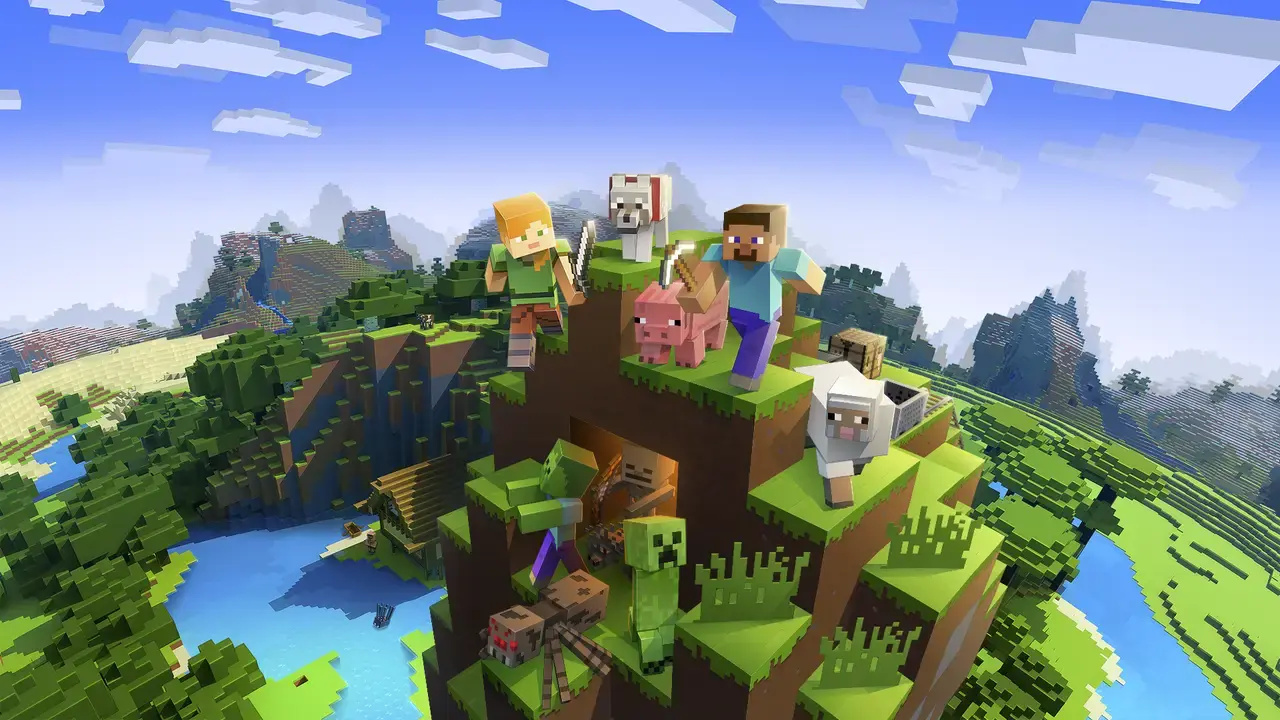
Moving from Minehut has two halves: download your world from Minehut's dashboard, then import it on your Minecraft server here with the World Import tab. Plugins, player lists and settings can come too.
Before you start
- Keep the Minehut server until players have the new address. Download everything before deleting it.
- Match the software here first. In the JAR Manager (under More), pick Minehut's server type (Paper or Fabric) and the same or a newer Minecraft version. Do this before copying anything, as a reinstall can reset config files. Change Minecraft server version or loader walks through it.
- Back up this server if it has a world you want to keep: Backups tab, Create backup. See How to create and restore backups.
Don't load the world on an older Minecraft version than Minehut ran. That can corrupt the save.
Download your world from Minehut
Steps checked against Minehut's help pages in October 2026. Its dashboard is at dashboard.minehut.com, and labels can change.
- Sign in, find your server on My Servers and click Manage.
- Ask players to leave, then click Activate. Minehut's download steps start with the server activated, and a free account runs one server at a time.
- Optional: under Settings, Selected World shows which world loads.
- Open the File Manager tab, tick your world's folder and click Download at the bottom. An older Minehut page describes clicking the world's name instead, then selecting all the files that appear on the right.
- Wait for the notification at the bottom of the page that says the download is done.
For the import below, you need a .zip with level.dat at its top or one folder down. If your download isn't one, zip the world folder yourself.
Minehut's help warns that spaces and special characters in a world's name cause download trouble. If a download fails, right-click the world in the File Manager, choose Rename, enter a plain name and click Apply.
The Nether, the End and server files
Paper servers before Minecraft 26.1 keep the Nether and the End in their own folders, named after the world with _nether and _the_end on the end. If your Minehut server shows them, download those too. From 26.1, Paper stores every dimension inside the world folder, so the world's download already has them.
Also download your add-ons, player lists and settings from the top level, where your server has them: the plugins folder on Paper or your mods on Fabric, whitelist.json, ops.json, banned-players.json and server.properties.
Paid Minehut plan: download over SFTP
Paid Minehut plans include SFTP, which suits big worlds. Scroll down your server's Settings tab for its details: host sftp://ftp.minehut.com, port 2223, and that server's own username and password.
- In FileZilla, enter the host, username, password and port in the bar at the top and click Quickconnect.
- Everything sits in the
serverfolder. Drag what you need from the right-hand panel to a folder on your computer on the left. - Keep the server online until it's done: use a 24/7 plan, or stay joined to the server in Minecraft so it doesn't hibernate.
Then zip the world folder and carry on below. Your other files go up with the File Manager as described further down.
Import the world
The World Import tab (under Content) unpacks your zip and makes it the server's world. Upload your singleplayer Minecraft world has the full walkthrough, including SFTP for zips over 100 MB.
- Stop the server on the Console tab. The import doesn't stop it for you, and a running server saves over the imported world when it stops.
- If you downloaded
server.properties, upload it first in the File Manager and choose Replace & overwrite. The panel resets the port each time the server starts. - In World Import, drag your zip onto Drop your world .zip here.
- Select it under Potential saves on your server and click Import selected world.
- Click Back up now if you haven't, then Import world.
Your world becomes world, with level-name=world set. The server's previous world folder is renamed, not deleted.
Add the Nether, the End and add-ons
-
Nether and End (Paper before 26.1): in the File Manager, rename the server's own
world_netherandworld_the_end. Name Minehut's folders exactly that, zip each folder, upload the zips to the top level and choose Extract here. Send zips over 100 MB by SFTP. -
Plugins or mods: reinstall each from the Plugins tab (Mods on Fabric) for your version, or upload its
.jar. Then upload its settings as a zip, such as its folder inplugins, and extract it in the same place. See Install plugins on a Paper or Purpur server or Install Fabric and Forge mods on your server. -
Player lists: upload the three
.jsonfiles to the top level.
Click Start. When the Console shows Done (…s)!, join and check your builds.
What doesn't come across
- Your Minehut address. Players add the new one from the panel's left rail. See Join your Minecraft server (and fix errors).
- Minehut backups and dashboard settings. Minehut's help says backups can't be downloaded, only your live files. Download the world files instead, and redo anything not stored in them.
If the world doesn't load
- A fresh world loads -
server.propertieswas probably replaced after the import. Setlevel-name=worldand restart. - Couldn't find a world (no level.dat) inside that zip. -
level.datis too deep. Zip the world folder itself and upload again. - The Nether or End is brand new - check the
world_netherandworld_the_endnames. No key dimensions in MapLike- see No key dimensions in MapLike: fix level.dat.- Errors naming a plugin or mod - update or remove it to suit your version and loader.
For help, send the first Console errors, Minehut's server type and version, and how you downloaded the files.
Frequently asked questions
Can I move a free Minehut server?
Yes. Minehut's help limits SFTP to paid plans, but not the File Manager download.
Will players keep their inventories?
Yes, if they join with the same accounts. Minecraft saves each player's data inside the world folder, so it moves with the world.
Can Bedrock players still join?
Yes, once you turn Crossplay on in the Crossplay tab. Let Bedrock players join your Java server has the steps and the server software it works on.
Related guides
Download your Aternos world and move it to a new server
Download your Minecraft world from Aternos, match its software and version on your new server, then import it with its Nether, End and plugins.
7 min read
How to upload a singleplayer world to a Minecraft server
Turn a Java Edition singleplayer save into your Minecraft server world: zip it the right way, import it from the panel and keep a way back.
6 min readPlay your Minecraft server world in singleplayer
Download your Minecraft server world from File Manager, sort out Paper's folder layout if you need to, and open it in singleplayer on a matching version.
4 min read